
MiniSpace 0.2.1 for Apple Silicon Macs
Find what fills your Mac.
Free it in minutes.
See where the space went and clear developer and app leftovers safely.
Everything goes to the Trash first, so you can always put it back.
Ad-hoc signed, not notarized by Apple · Apple Silicon, macOS 12 or later · 14-day refund
Three steps, and nothing moves until the third.
Finding is read-only. Reviewing is yours. Trashing is reversible until you empty the Trash yourself.
-
Find
One click scans 17 categories: Xcode DerivedData, simulator caches, app caches and logs, Homebrew and package-manager caches, AI model caches, Docker data, iPhone backups, old installers, stale
node_modulesand the Trash itself. -
Review
Every category shows its size, its items and one line on what happens after removal. Safe groups are pre-selected. Review first groups are not.
-
Trash, then empty
Selected items move to the Trash, never deleted directly. Empty Trash inside MiniSpace frees the space and shows the real bytes freed.
Built for the way a Mac actually fills up.
Developer caches, forgotten apps, duplicate downloads and one huge folder you had no idea about. MiniSpace covers each of them, carefully.
-
Free up space
17 categories that explain themselves
Xcode, simulators, app caches and logs, Homebrew, npm, yarn, pnpm, bun, pip, uv, cargo, gradle, CocoaPods, SwiftPM, Go, Ollama and Hugging Face caches, Docker data, iPhone backups, Mail downloads, old installers, stale node_modules and the Trash. Log and cache folders are recreated empty so running tools keep working.
-
Undo
Undo and Put back
Every move is written to a local recovery log with its original path. Undo on the result banner puts the last batch back; Recent moves lists every batch and item with a Put back button. Put back never overwrites an existing file.
-
Apps
Uninstaller with confidence-ranked leftovers
Every app with its size, version, last change and a Running badge. Library leftovers (Caches, Preferences, Application Support, Containers, Saved State, Logs) are ranked by confidence; only exact bundle-identifier matches are pre-ticked. Apple apps are shown but never removable.
-
Duplicates
Byte-identical, verified by SHA-256
Files of 1 MB and up are compared by size, then a partial hash, then a full SHA-256 across the folders you choose. The oldest copy is kept by default, you can pick another, and at least one copy always stays.
-
Disk scan
Treemap and Largest files
Scan a drive or any folder. A treemap shows every folder coloured by age (Hot, Warm, Cool, Frozen), plus Largest files, What could move and Skipped. Trash straight from the results, with confirmation and a recovery log. Results are cached, so the app opens with the last scan.
-
Honesty
System Data, explained
A card shows the local Time Machine snapshot count and free space, and explains why MiniSpace does not "clean" System Data. No scare numbers.
Real screens from version 0.2.0.
Taken on the development Mac, unretouched. Scroll sideways.
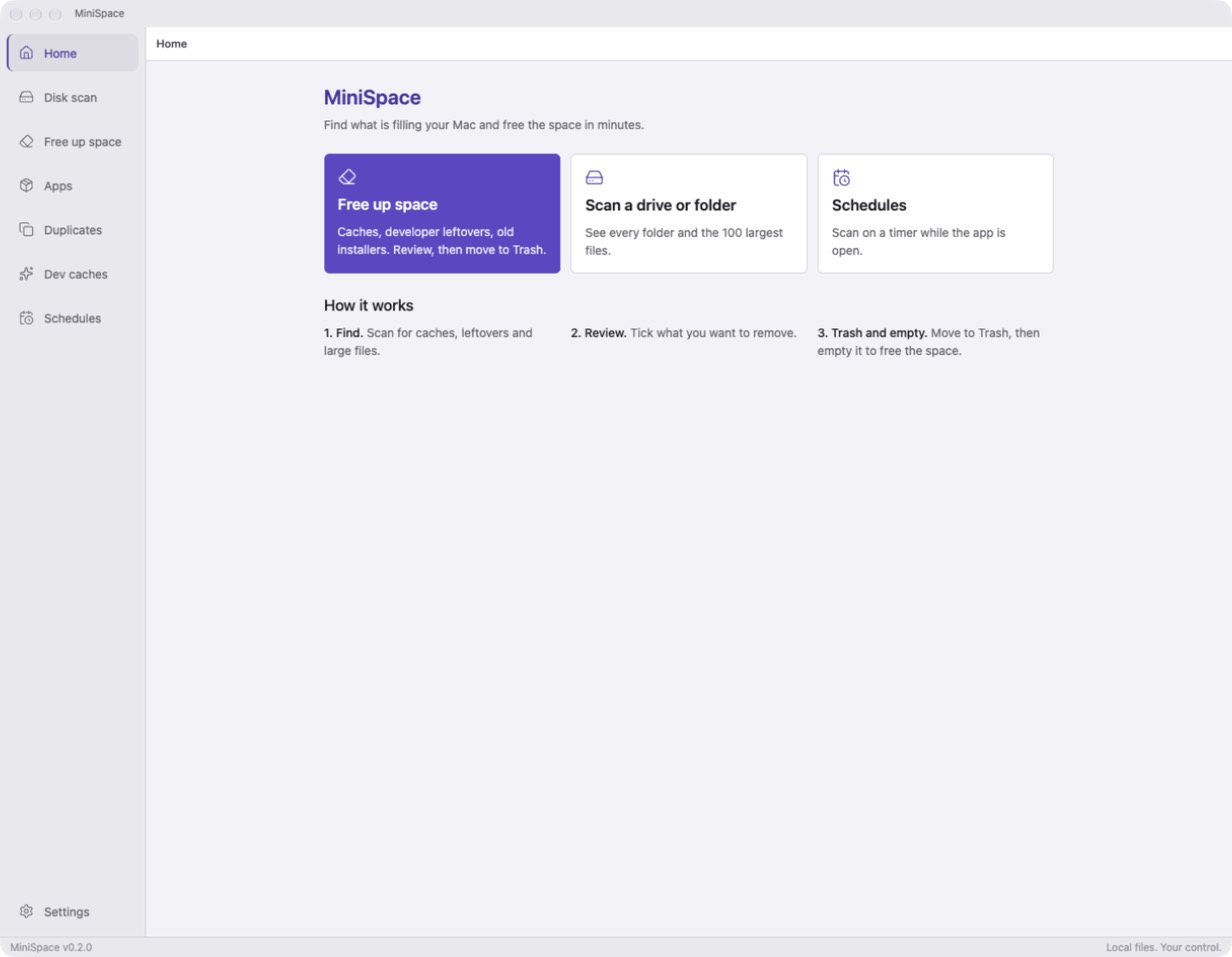
Home. Three starting points and the same three steps the app follows everywhere. 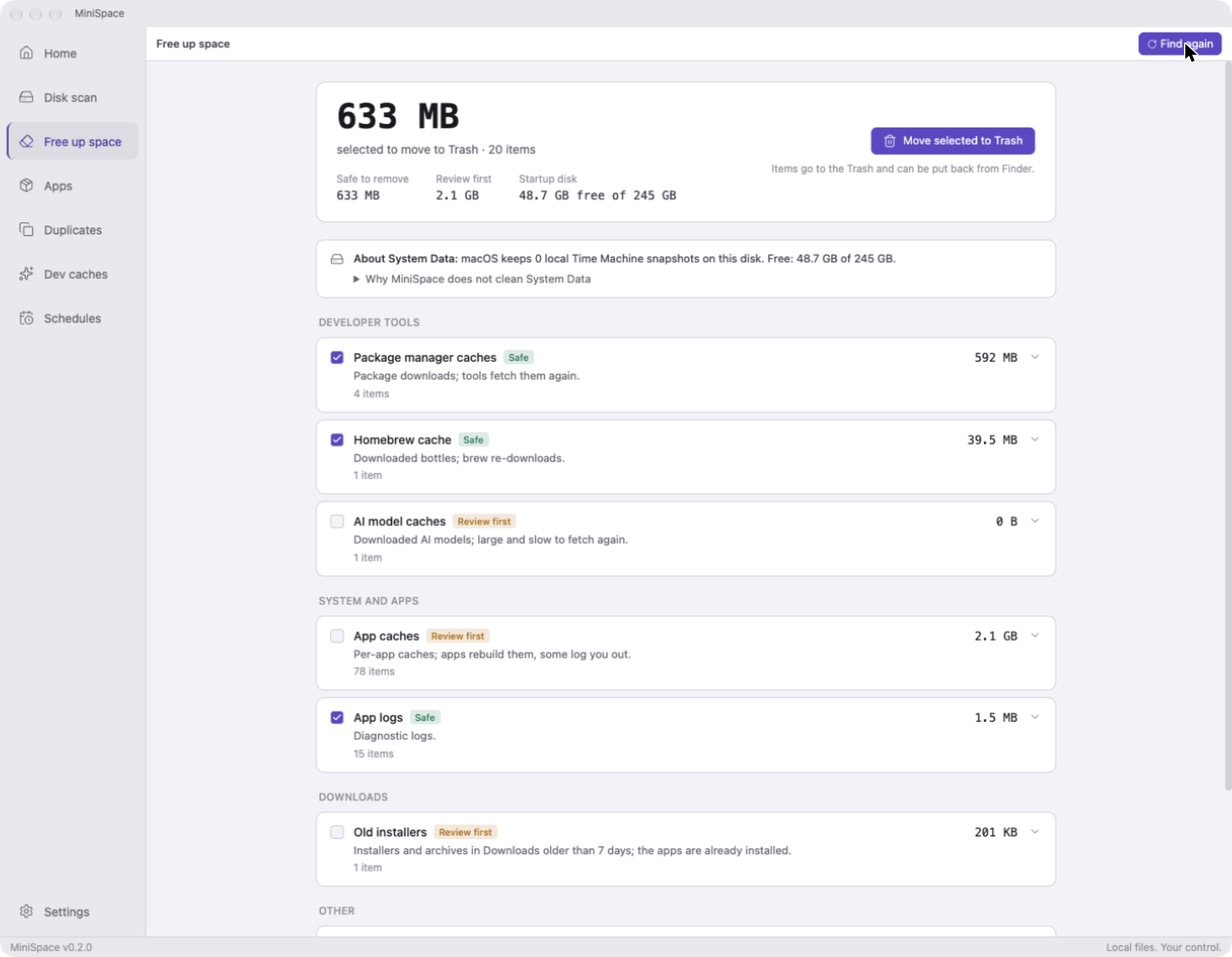
Free up space. Safe groups are ticked, Review first groups are not, and System Data is explained instead of promised. 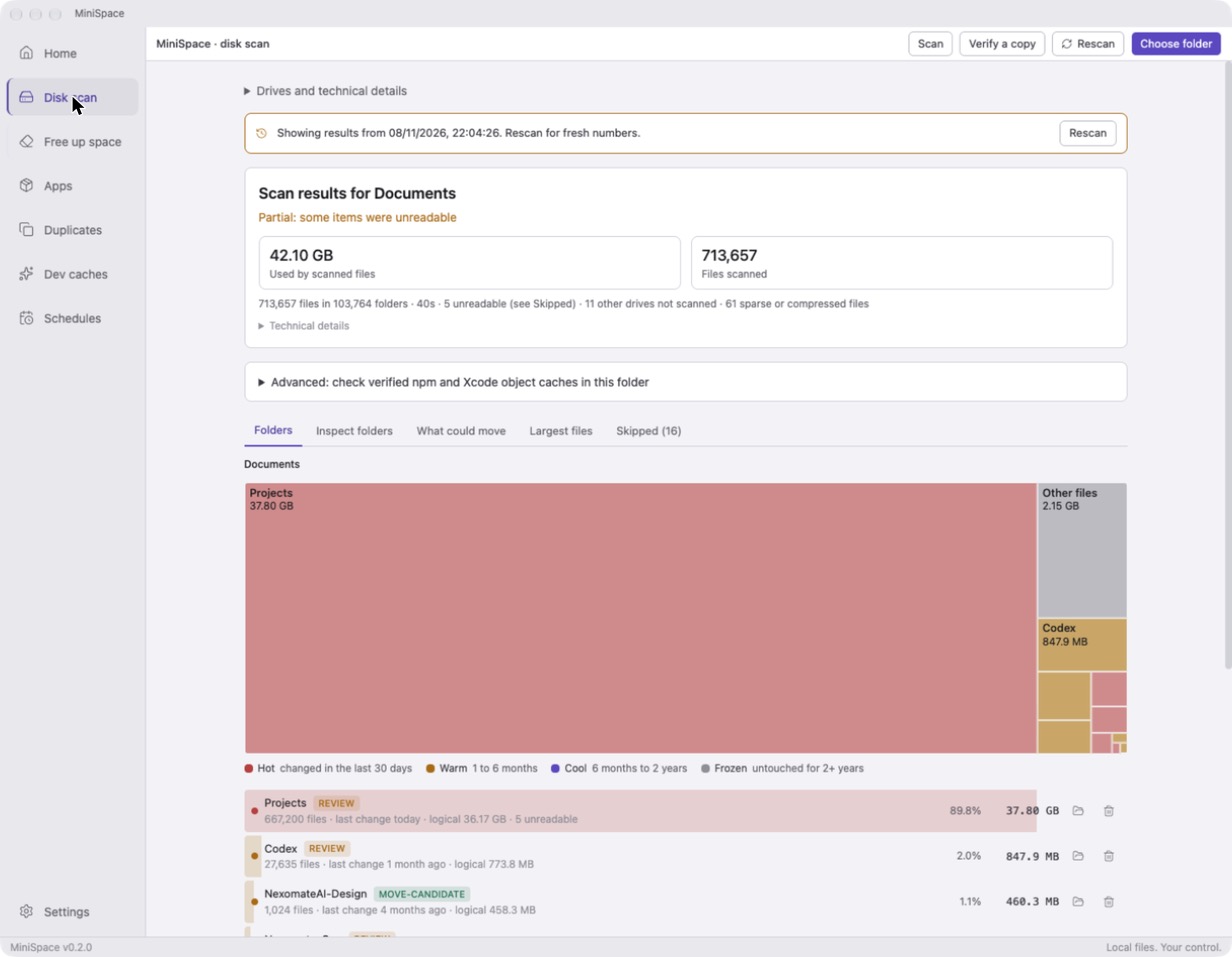
Disk scan. A treemap of every folder, coloured by age, with Largest files, What could move and Skipped tabs. 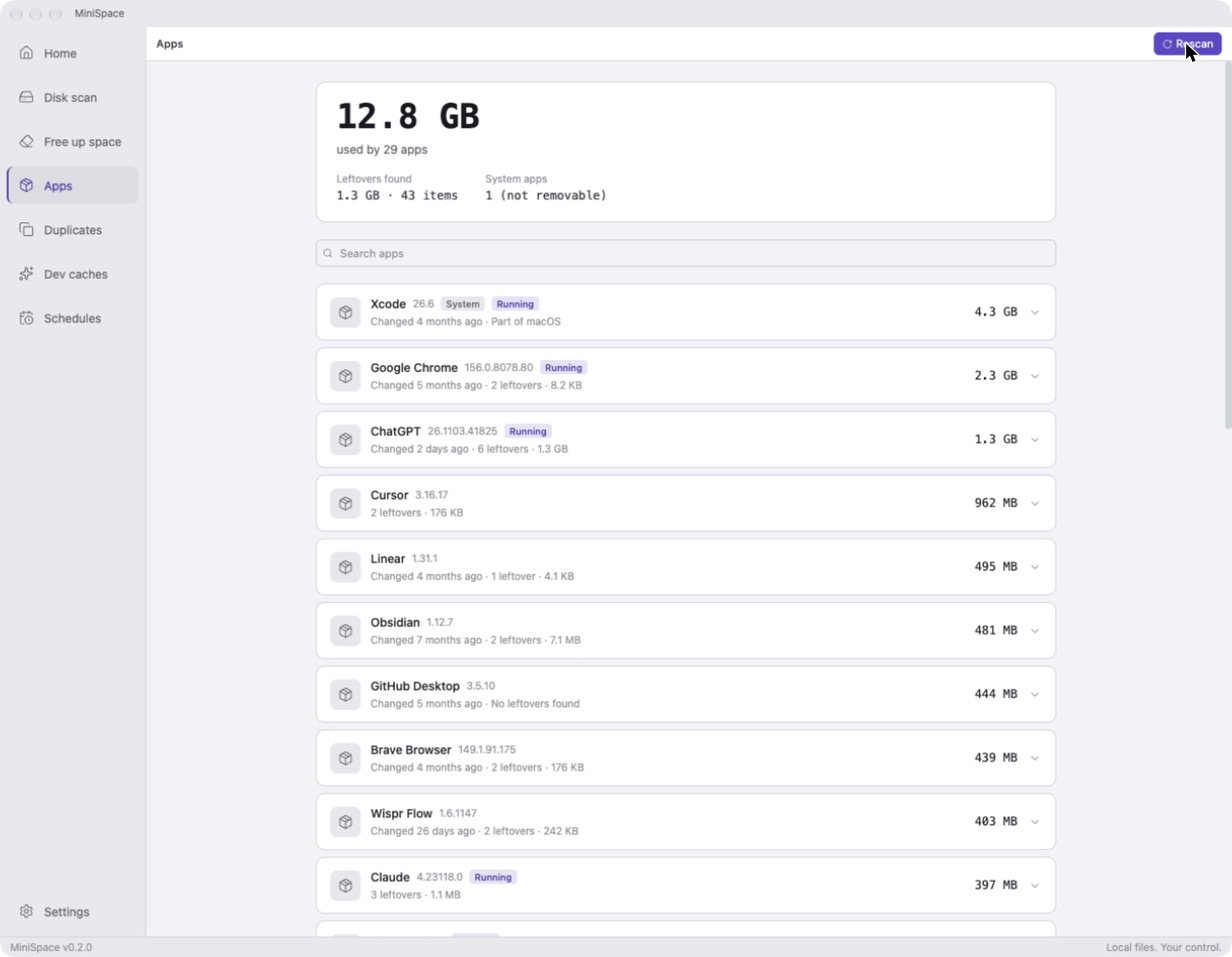
Apps. Size, leftovers and a Running badge for each app. System apps are listed for size only. 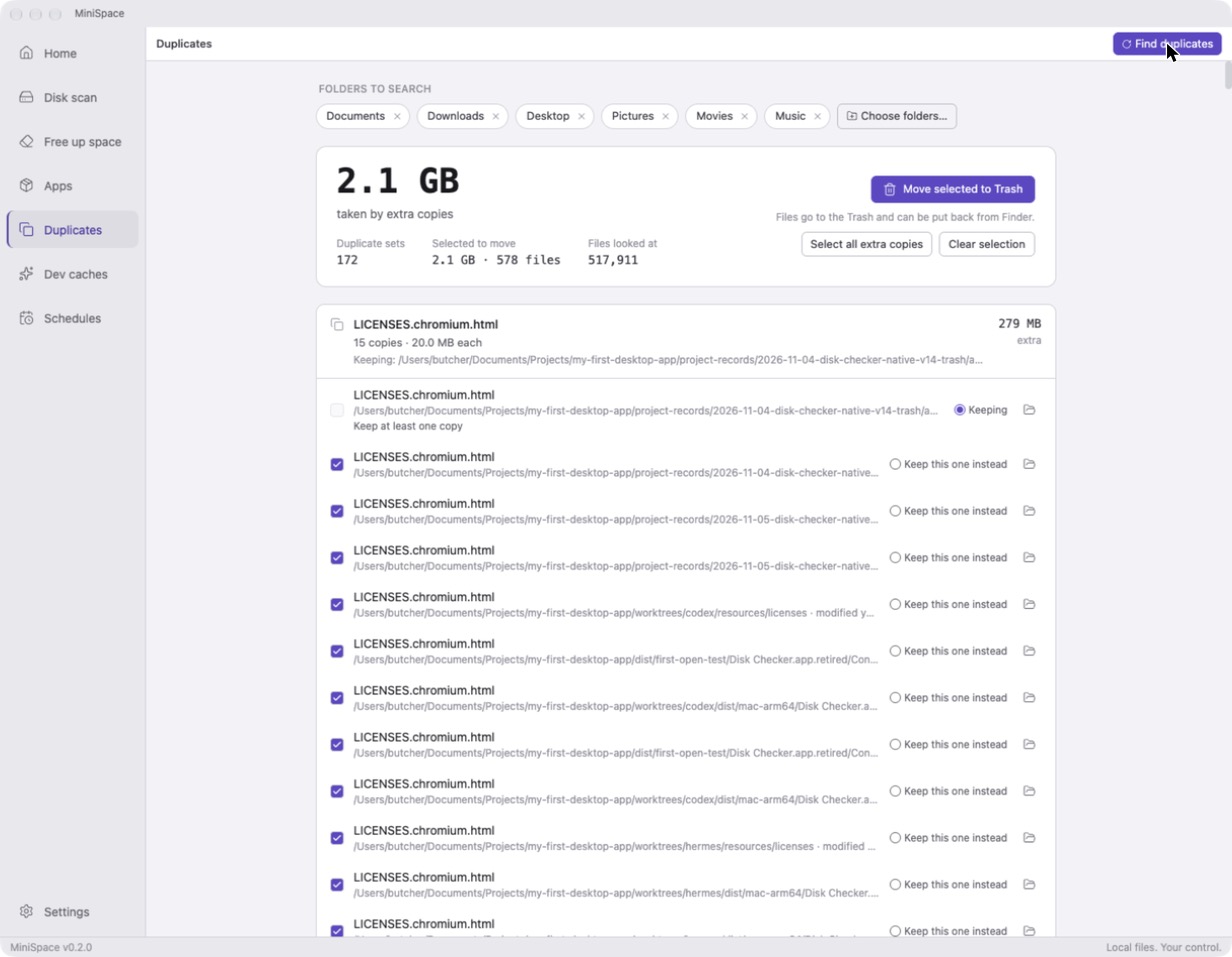
Duplicates. Only byte-identical files are grouped. You choose which copy stays.
What it never touches.
These locations are off limits by design. If an item falls inside one, MiniSpace leaves it in place and says why. There is no setting that changes this.
- System folders: /System, /Library, /usr and /Applications internals
- iCloud Drive
- Keychains
- Mail data
- Preferences, except the app's own plist when you uninstall that app
- Your top-level folders: Documents, Downloads, Desktop, Library and the rest
One price. No subscription.
Pay once on Gumroad and use MiniSpace on your own Macs.
- Apple Silicon DMG with the app
- Installation and recovery guide, with the first-open steps
- Third-party licence notices
- SHA-256 checksum so you can verify the download before opening it
- License key emailed by Gumroad; activate once inside the app
If MiniSpace does not suit your Mac or workflow, request a refund within 14 days by replying to your Gumroad receipt. This does not reduce your consumer rights. Requires an Apple Silicon Mac (M1 or later) on macOS 12 or later.
Questions, answered plainly.
Does it run on Intel Macs?
No. MiniSpace 0.2.0 is built for Apple Silicon (M1 or later) only and requires macOS 12 or later. It is not for Intel Macs, Windows or Linux. It has been tested on a current macOS release, not on every supported version.
Why does macOS warn me when I open it, and how do I open it?
This release is ad-hoc signed and not notarized by Apple, because it is an indie release made without the Apple Developer Program. On first launch macOS says it cannot check the app for malicious software. That is expected and does not mean the download is damaged. First, compare the DMG's SHA-256 checksum with the one on the Gumroad page. Then, if you trust the download, either:
- Control-click (right-click) MiniSpace in Applications and choose Open, then Open again; or
- Open it normally, click Done when macOS blocks it, then go to System Settings > Privacy & Security, scroll down and choose Open Anyway next to MiniSpace. You do this once.
Do not turn off Gatekeeper or System Integrity Protection, and do not run commands that strip security attributes. MiniSpace will never ask you to. A Mac managed by an organisation may not allow this app at all. Apple's guide to opening an app from an unidentified developer.
Why does it ask for Full Disk Access, and what happens without it?
macOS protects the Trash and some app folders. MiniSpace needs Full Disk Access to read the Trash size, to Empty Trash, and for Undo and Put back; some Free up space groups also need it. The app shows a card with a button that opens Privacy & Security. Add MiniSpace with the + button if it is not listed, turn it on, then quit and reopen the app.
Without it, everything else still works. Those groups show as unreadable or smaller than they are, and Empty Trash and Put back explain that they need the permission. MiniSpace never changes this setting itself. You decide.
Does it delete anything on a timer?
No. Permanent removal happens only through Empty Trash, after you confirm it inside the app. Schedules are off until you create one, and they only scan, remind you to review, or, with your explicit consent for that specific folder, move Xcode DerivedData to the Trash. Schedules run only while MiniSpace is open. There is no login item or background agent.
Does it send my data anywhere?
No. Scanning reads file and folder metadata (names, sizes, dates) on your Mac. This version does not upload file contents or scan results anywhere. There is no account, no analytics or telemetry and no automatic update service. The only outbound action is a Help-menu link that opens in your browser when you click it. Payment is handled by Gumroad on its own site.
How do I get my files back?
- Undo. The result banner has an Undo button that puts the latest batch back at its original paths.
- Recent moves. At the bottom of the Free up space screen, every batch is listed with a Put back button per item. Put back never overwrites a file that is already at the original path.
- Finder. Open the Trash and use Put Back, or drag the item out. For items that went through a holding folder, Put Back may not know the original location; the recovery log lists every original path.
Items you have already emptied from the Trash cannot be restored. Reading the Trash needs Full Disk Access.
Where is my license key?
Gumroad shows it in your purchase receipt email and on the download page for your order. If you lose it, use Gumroad's license key lookup with the email you bought with, or reply to your receipt.